Published on
- 7 min read
Google Colab Learn Mode: Gemini as Your Personal Python Tutor
By crayfish · May 29, 2026 · Category: AI Tools
Google Colab has been the go-to platform for anyone who wants to run Python in the cloud — students, researchers, data scientists, and hobbyists alike. Since Gemini was integrated into Colab, the assistant has been a capable code generator: describe what you want, and Gemini writes the code.
But there is a problem with code generation: it does not teach you anything. You get working code, but you do not understand it. You can reproduce the result, but you cannot adapt it to a new problem. You become dependent on the AI instead of becoming independent from it.
Google’s Learn Mode and Custom Instructions — two features that work together inside Colab — are designed to fix this. Learn Mode changes how Gemini interacts with you, and Custom Instructions let you control how it teaches. Together, they transform Gemini from a code generator into a personalized Python tutor.
This guide covers everything you need to know: what these features are, how to set them up, and how to use them effectively.
Learn Mode vs. Standard Mode: What Changes?
Before diving into setup, it is worth understanding exactly what changes when you switch from Standard Mode to Learn Mode.
Standard Mode is output-driven. You ask Gemini to do something, and it does it. “Create a bar chart of sales by region” produces a complete code block that you can run immediately. The interaction is fast, efficient, and transactional.
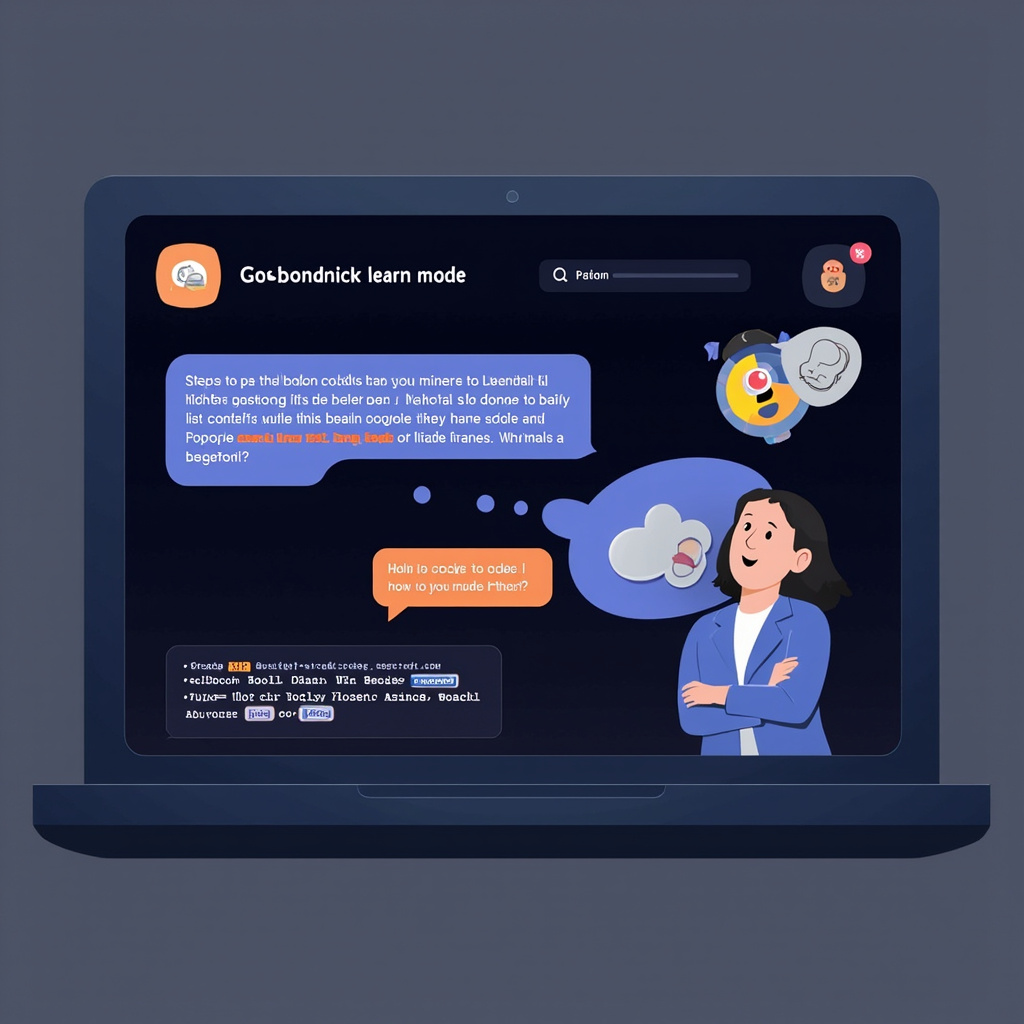
Learn Mode is process-driven. You ask the same question, and Gemini responds differently. Instead of writing the code, it might say: “To create a bar chart, we first need to aggregate the sales data by region. What function do you think we should use to group the data?” It guides you through the solution step by step, explaining the reasoning behind each decision.
The trade-off is clear: Standard Mode is faster, Learn Mode is deeper. For quick tasks, Standard Mode wins. For learning, Learn Mode is in a different league.
| Aspect | Standard Mode | Learn Mode |
|---|---|---|
| Goal | Generate working code | Teach you how to write code |
| Interaction style | Gemini writes, you run | Gemini guides, you write |
| Speed | Fast | Slower (by design) |
| Best for | Production tasks, prototyping | Learning, exploration, skill-building |
| Questions | Rarely asks you questions | Frequently asks you questions |
| Code insertion | Auto-inserts into notebook | Suggests code for you to type |
How to Enable Learn Mode: 5-Step Guide
Getting started with Learn Mode takes less than a minute. Here is the full process:
Step 1 — Open a Colab notebook. Go to colab.research.google.com and create or open a notebook.
Step 2 — Open the Gemini panel. Click the Gemini button in the Colab toolbar on the left side of the screen, or use the keyboard shortcut.
Step 3 — Enable Learn Mode. In the Gemini panel, look for the “Learn Mode” toggle switch. Click it to turn Learn Mode on. The panel will update to indicate that Learn Mode is active.
Step 4 — (Optional) Set Custom Instructions. Before starting your learning session, click on the settings or instructions area and define your preferences. More on this below.
Step 5 — Start learning. Ask Gemini to teach you something. Instead of asking it to “write code,” phrase your request as a learning goal: “Teach me how to filter a pandas DataFrame” or “Walk me through creating a neural network in PyTorch.”
Figure 2: The Learn Mode interface inside Google Colab — toggle it on in the Gemini panel to start learning
Custom Instructions: Making the Tutor Yours
Custom Instructions is the companion feature that makes Learn Mode truly personalized. Without Custom Instructions, Gemini teaches in a generic way — helpful, but not tailored to you. With Custom Instructions, you control the teaching style, depth, and focus.
Here is what you can configure:
Coding style preferences. Tell Gemini whether you prefer functional or object-oriented code, whether you want type hints, and what naming conventions to follow. This ensures the code you learn matches the style used in your projects or workplace.
Library preferences. Specify which libraries you want to focus on. If you are learning data science, you might say: “Use pandas, numpy, matplotlib, and scikit-learn only. Do not use other libraries unless I ask.” This keeps the learning focused and avoids confusion.
Project context. Describe your project or learning goal. “I am building a sentiment analysis tool for customer reviews. All examples should relate to NLP and text processing.” This makes the tutoring relevant to your actual work.
Response format. Control how verbose Gemini is. “Keep explanations under 3 sentences. Always show expected output. Use code comments to explain tricky lines.” This lets you dial in the right level of detail.
Experience level. Be honest about where you are. “I am a complete beginner” gets very different responses than “I have 5 years of Python experience but am new to machine learning.” Gemini adjusts its vocabulary, pacing, and the concepts it assumes you already know.

Figure 3: Custom Instructions let you define Gemini’s teaching approach — from coding style to explanation depth
Real-World Use Cases
Learn Mode is not limited to beginners. Here are four ways different users can benefit:
Learning Python from Scratch
If you are new to programming, Learn Mode provides the interactive guidance that static tutorials cannot. Ask Gemini to teach you loops, functions, or classes, and it will walk you through each concept with examples, ask you to write your own code, and correct your mistakes in real time. The Socratic questioning approach helps you build intuition rather than memorizing syntax.
Teaching and Classroom Use
Educators can use Learn Mode as a scalable supplement to office hours. Instead of answering the same “how does this loop work?” question 30 times, instructors can point students to Learn Mode for foundational concepts. Custom Instructions can be set to match the course curriculum, ensuring consistency between AI tutoring and classroom instruction.
Exploring New Libraries
Even experienced developers encounter unfamiliar tools. If you are picking up PyTorch, learning about Apache Beam, or exploring a new API, Learn Mode provides guided exploration. Instead of reading documentation passively, you get to write code with real-time feedback and explanations tailored to your existing knowledge.
Code Review and Understanding
When you inherit a codebase or encounter a complex function you do not understand, Learn Mode can help you break it down. Ask Gemini to “explain this function step by step” and it will walk you through the logic, identify the key operations, and help you understand the intent behind the code.
When to Use Standard Mode Instead
Learn Mode is excellent for learning, but it is not always the right choice. Here are situations where Standard Mode is better:
- You need a quick answer. If you just need to format a date or parse a JSON string, Standard Mode is faster.
- You are prototyping. When you are exploring ideas and need to iterate quickly, the overhead of step-by-step explanations slows you down.
- You already know the concept. If you are an expert asking about something in your domain, Learn Mode’s explanations are unnecessary.
- Production debugging. When you are under time pressure to fix a bug, you want the answer, not a lesson.
The good news is that switching between modes is instant — just toggle the switch. Use Learn Mode when you want to learn, Standard Mode when you need to ship.
The Bottom Line
Learn Mode and Custom Instructions together represent Google’s most thoughtful approach to AI-assisted education. Rather than building a separate learning platform, Google embedded the tutoring experience directly into the tool millions of developers already use daily. The result is a seamless transition between “I need code” and “I need to understand code” — both in the same environment, with the same assistant.
If you use Colab regularly and have ever felt that AI code generation was making you a weaker programmer rather than a stronger one, Learn Mode is worth your time. Toggle it on, set your Custom Instructions, and ask Gemini to teach you something you have been taking for granted. The difference between having code and understanding code is the difference between a developer who can copy and one who can create.
Have you tried Learn Mode in Colab? How does it compare to other AI tutoring tools? Share your experience in the comments.
Related Articles

Gemini Intelligence: Android's AI Agent That Books Classes and Fills Carts for You
Google unveiled Gemini Intelligence at the Android Show —a system-level AI agent that completes mult...

Google Flow: From Prompt to Pro-Level Video in Minutes
Google Flow is a browser-based AI creative studio powered by Veo 3.1. Generate cinematic video clips...
Google Gemini 3.5 Flash: The Agentic AI Model Built for Real-World Tasks
Google unveiled Gemini 3.5 Flash at I/O 2026 — the first model built from the ground up for agentic ...